Desktop app
SQZ Backup is a small Windows and macOS app on top of sqz backup. Pick a folder, pick where the backups go, choose when to run, and the app takes it from there: scheduled backups, old snapshots cleaned up, and a restore that never overwrites anything.
The app is new. Scheduled backups and the saved password have so far been tested on Linux only, not yet on a real Windows PC or Mac. The backups themselves use the same sqz backup engine as the command line, so everything in Backup basics and the Security model applies. The builds are unsigned.
Download#
| System | Download | Notes | Size |
|---|---|---|---|
| Windows 10 / 11, 64-bit | sqz-backup-windows-x64-setup.exe | An installer for your user; includes the sqz engine. | 3.8 MB |
| macOS Apple Silicon | sqz-backup-macos-arm64.dmg | A disk image; drag the app to Applications. | 5.1 MB |
Version 0.1.0, built on 30 September 2026 (commit 00b73bd). Checksums: SHA256SUMS.txt. The installers are not signed yet, so Windows SmartScreen warns the first time (choose More info › Run anyway), and on macOS you open the app the first time with right-click, Open.
Your first backup plan#
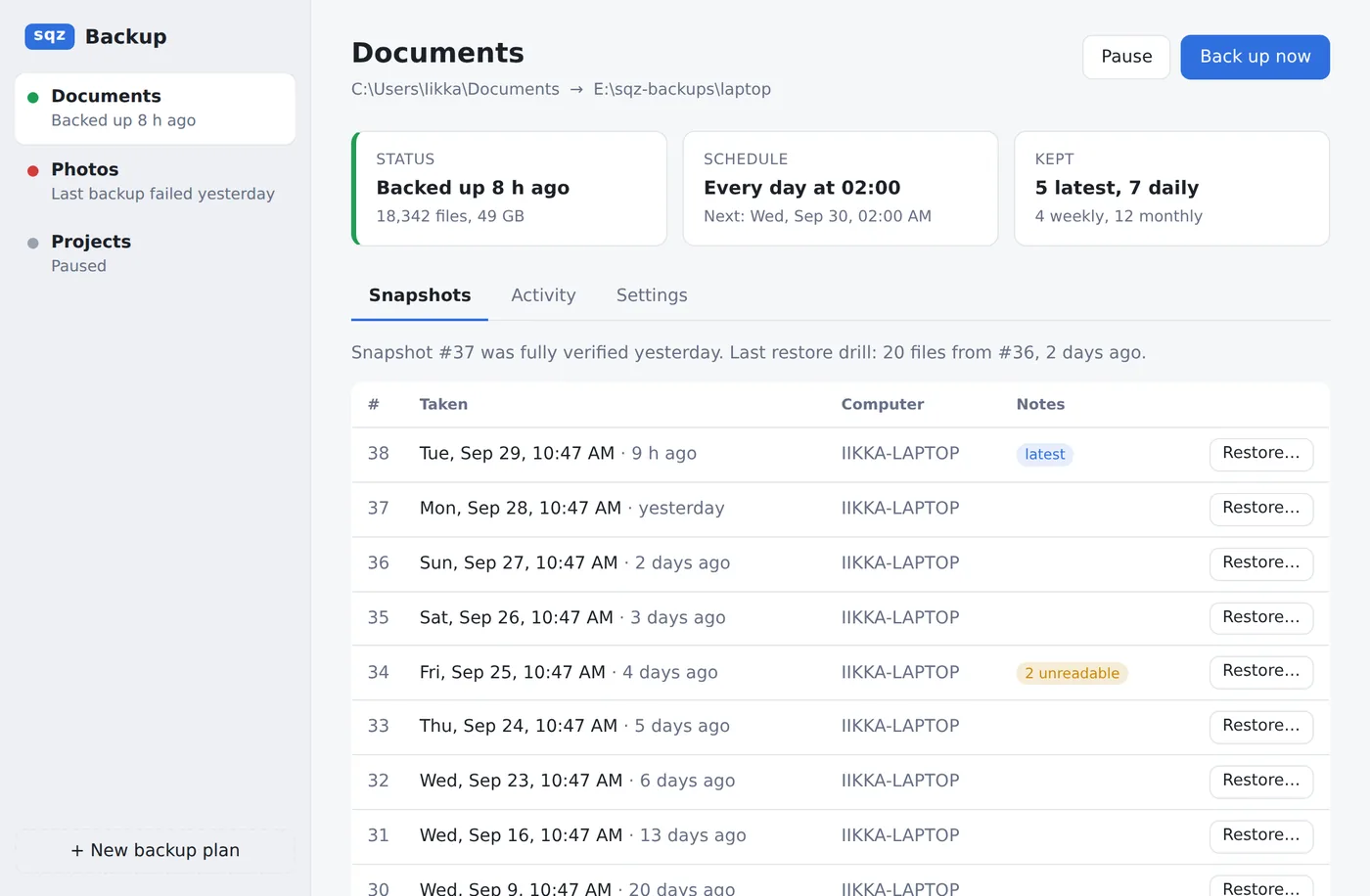
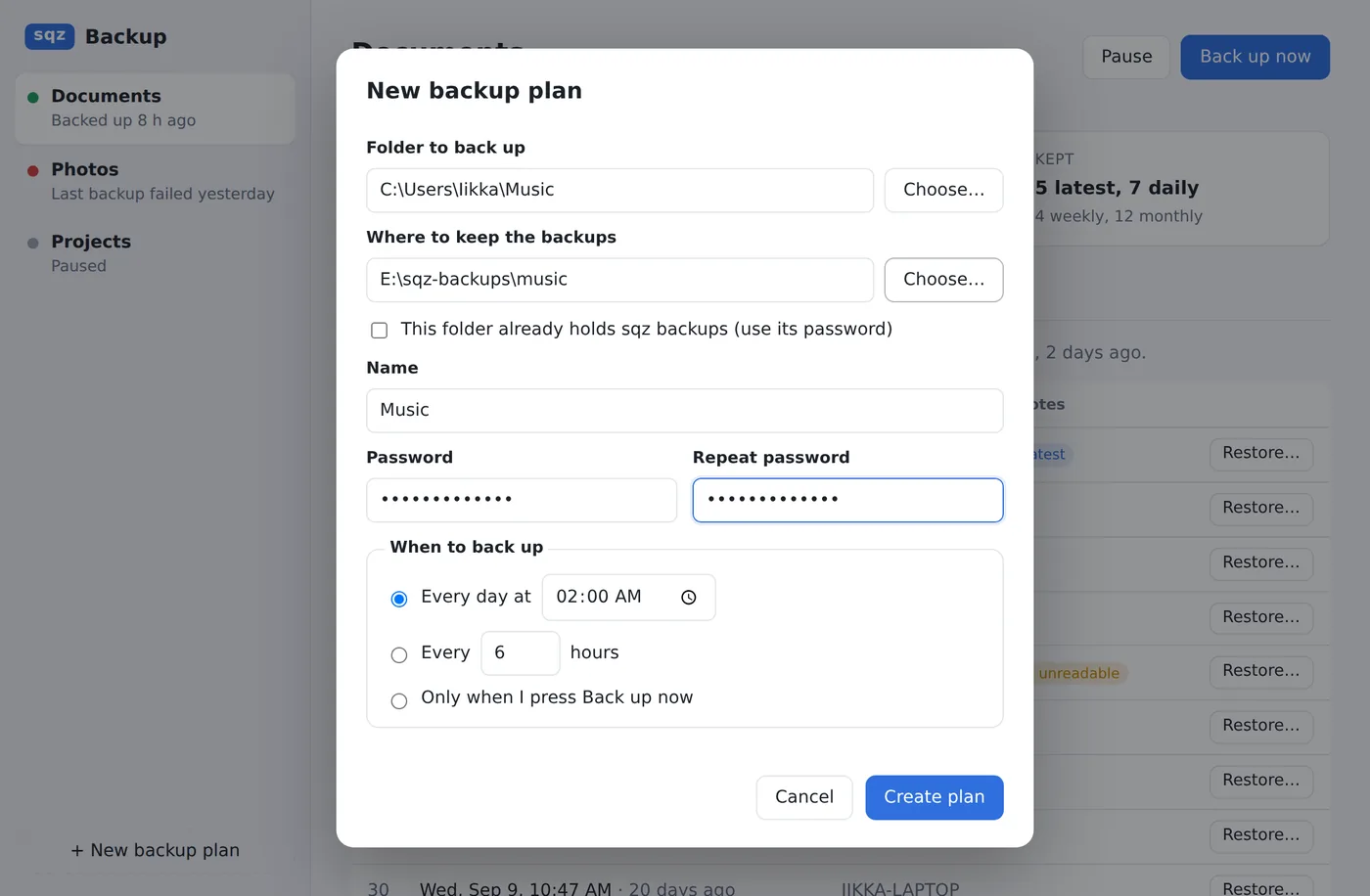
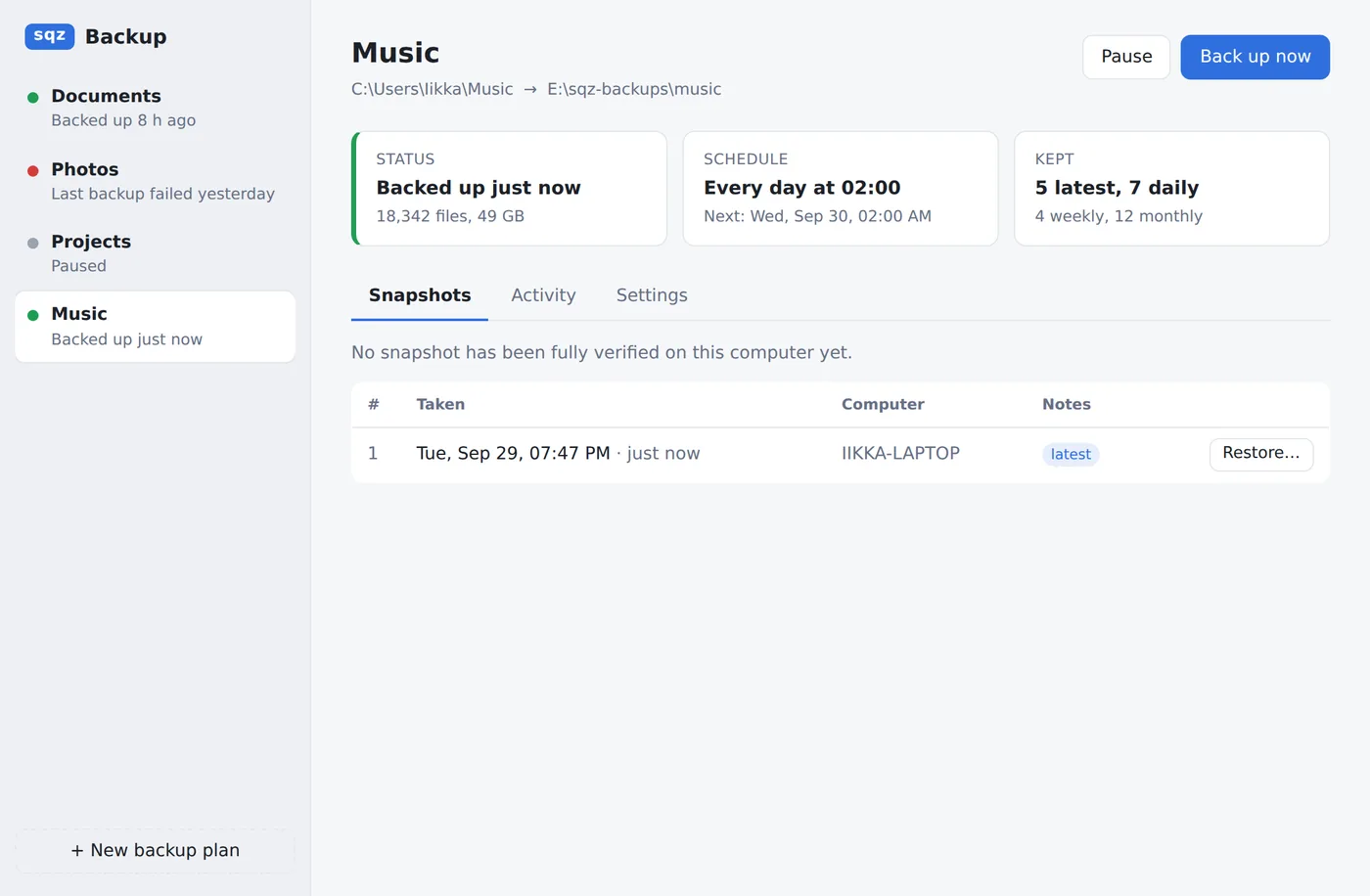
A plan is one folder backed up to one repository: for example C:\Users\you\Documents to E:\sqz-backups\laptop. Choose + New backup plan and fill in:
- What to back up: one folder.
- Where the backups go: a folder, usually on another drive. An empty folder becomes a new encrypted repository.
- A password of at least 8 characters. If the folder already holds sqz backups (made by the command line or another plan), tick This folder already holds sqz backups and type its password instead.
- When to back up and which snapshots to keep, which you can change later.
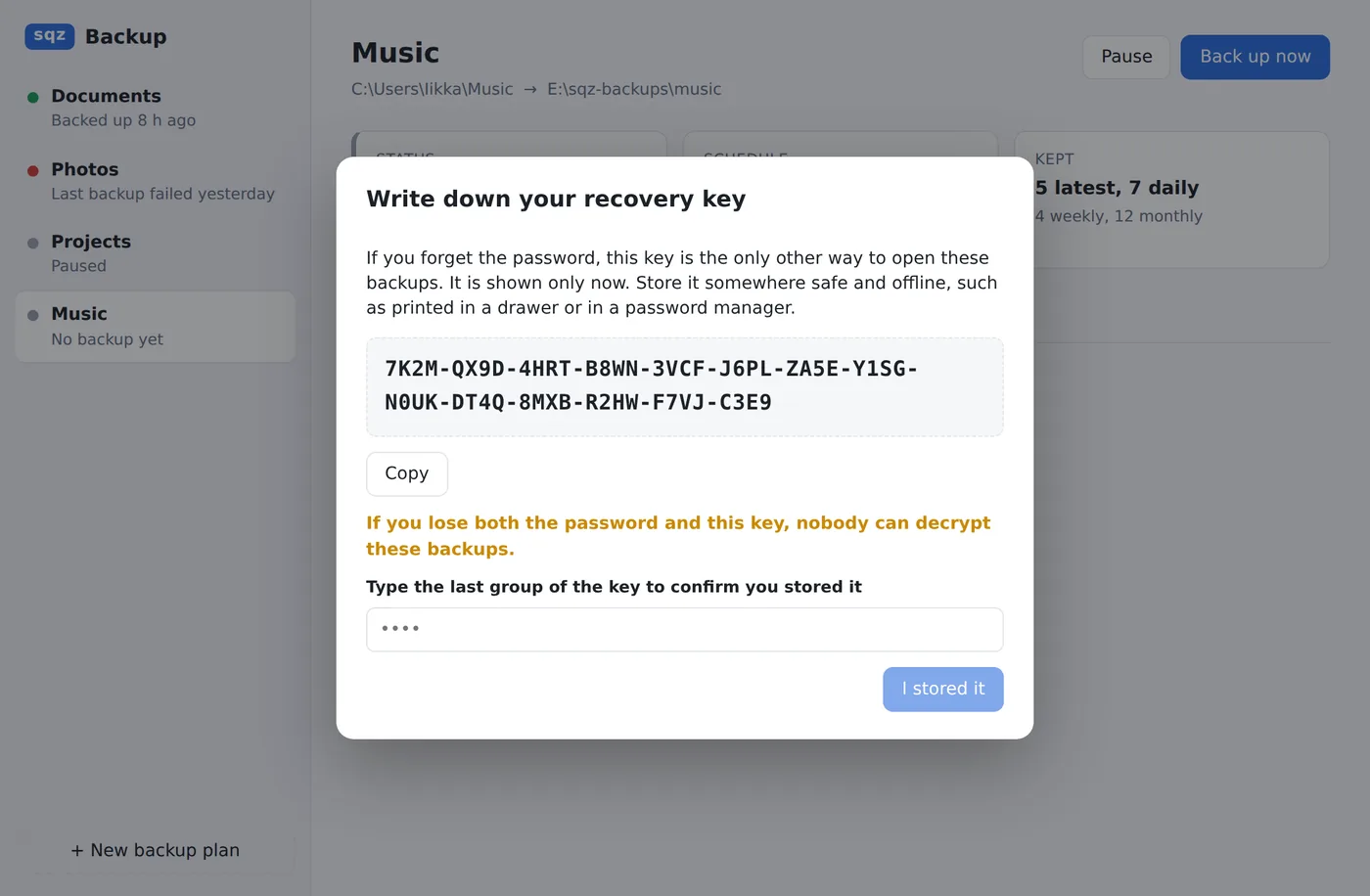
For a new repository the app then shows the recovery key once. Write it down or print it and keep it away from the computer; the app asks you to type its last group to confirm you have it. Either the password or the recovery key unlocks the backups. Without both, nobody can read them, including you.
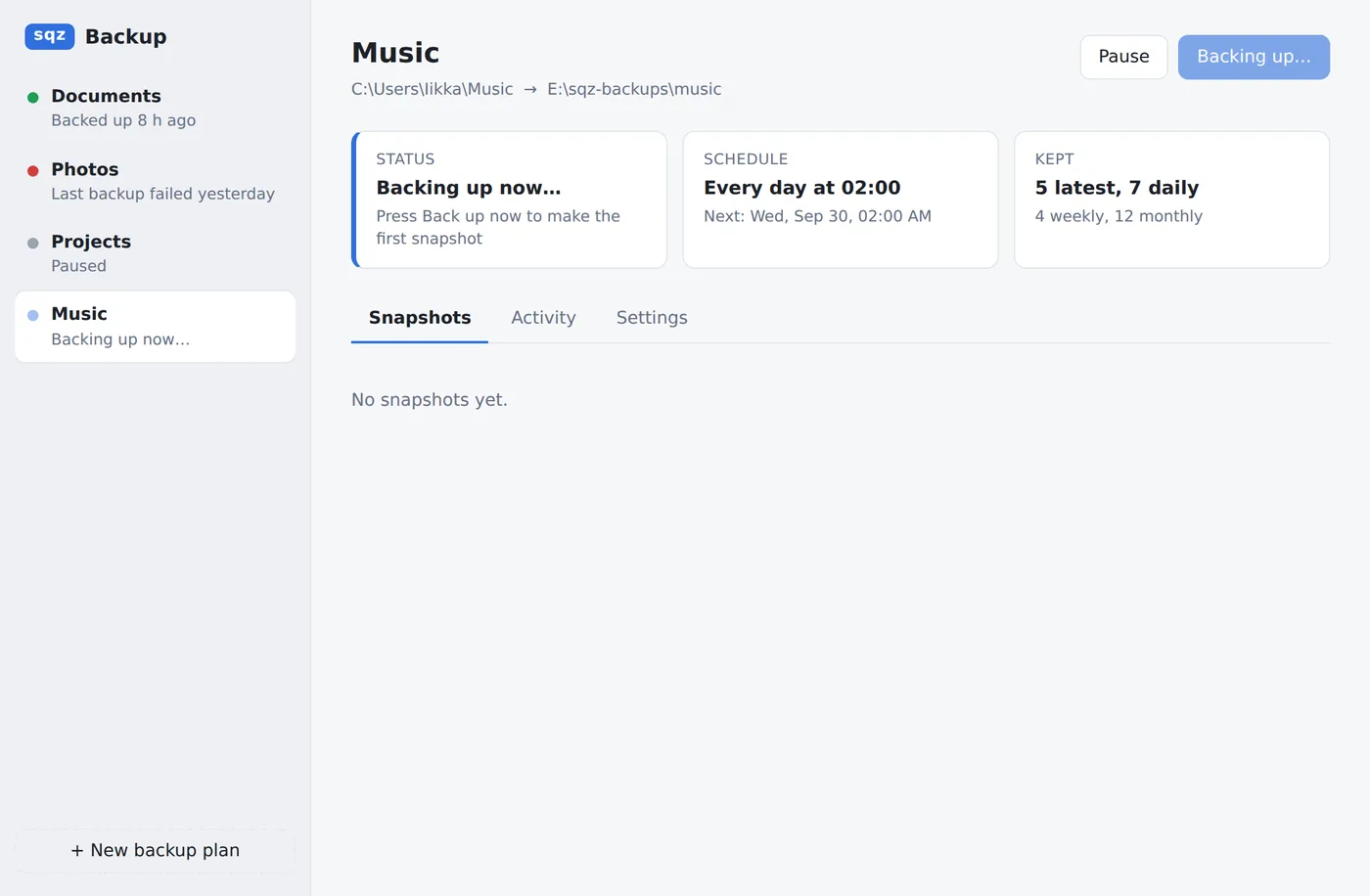
Press Back up now to make the first snapshot straight away, or wait for the schedule.
Schedules#
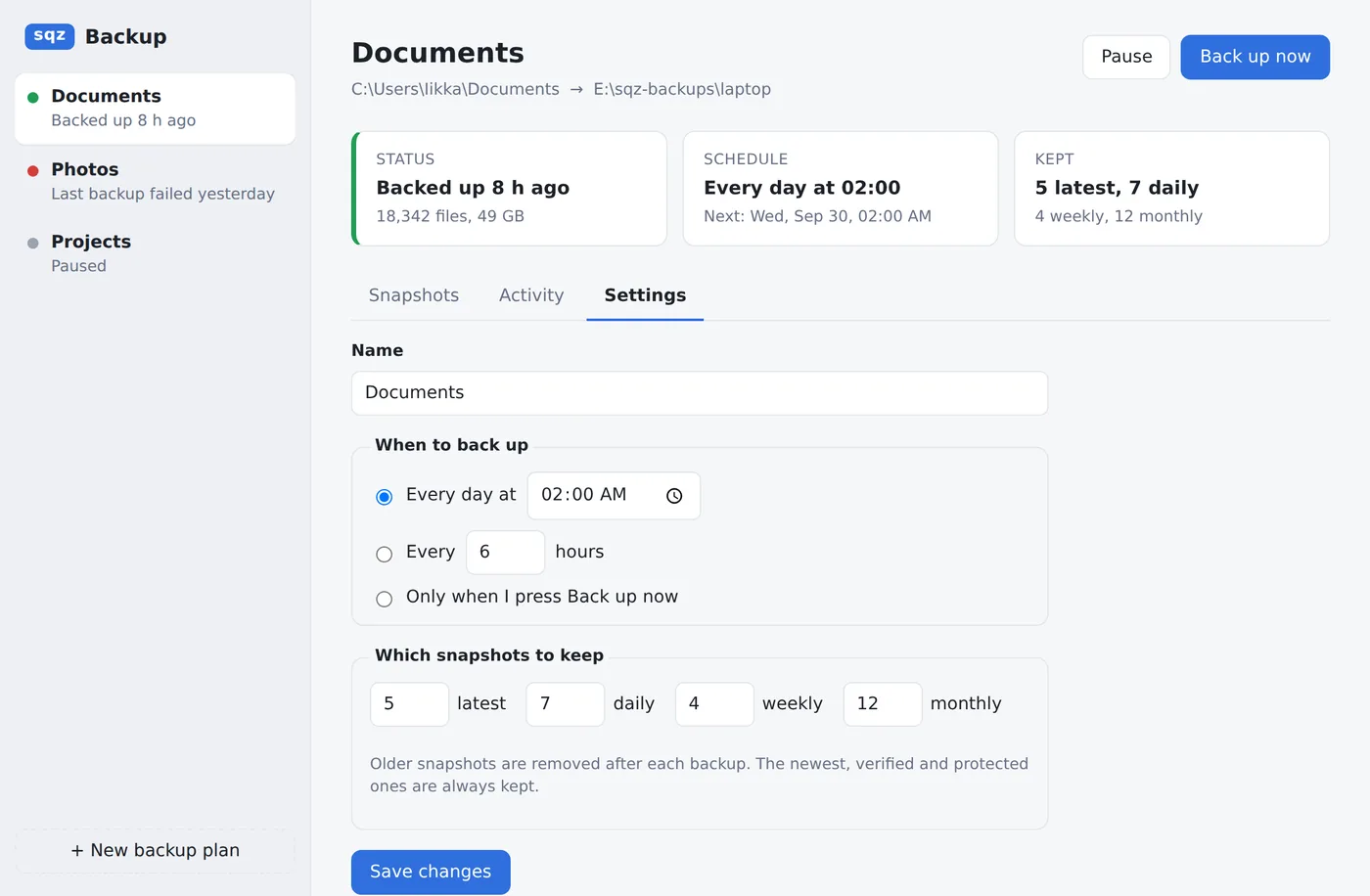
Each plan backs up on one of three schedules: every day at a time you pick, every N hours, or only when you press Back up now. Pause stops a plan's schedule until you resume it.
Schedules are handed to the operating system, so they run even when the app window is closed:
| System | How the schedule runs | If the computer was off |
|---|---|---|
| Windows | A Task Scheduler task per plan, for your user | A missed run starts when the computer is back on. |
| macOS | A LaunchAgent per plan | A missed slot runs once when the Mac wakes. |
A scheduled run starts the app without a window, backs up, applies the plan's keep policy and records the result in the plan's Activity. If another backup already holds the repository (for example a manual run still going), the scheduled run is skipped and says so.
Which snapshots are kept#
After each backup the app removes snapshots the plan no longer keeps and reclaims their space. The default keeps the 5 latest, 7 daily, 4 weekly and 12 monthly snapshots; you can change each number in Settings. It is the same rule as this command, so the newest snapshot, the latest verified one and protected ones are always kept (see Retention and prune):
sqz backup forget <repo> --keep-last 5 --keep-daily 7 --keep-weekly 4 --keep-monthly 12 --pruneSnapshots and activity#
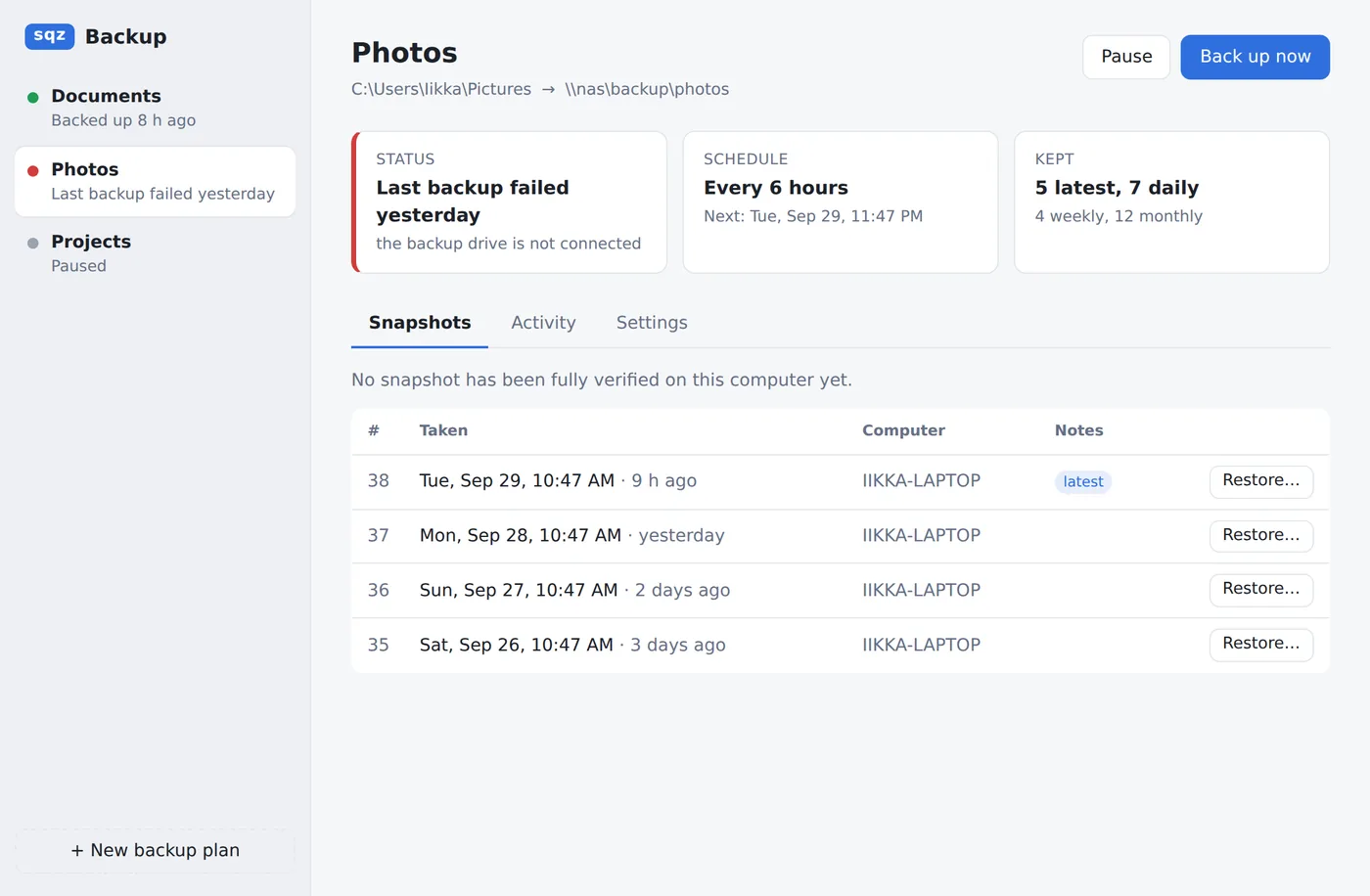
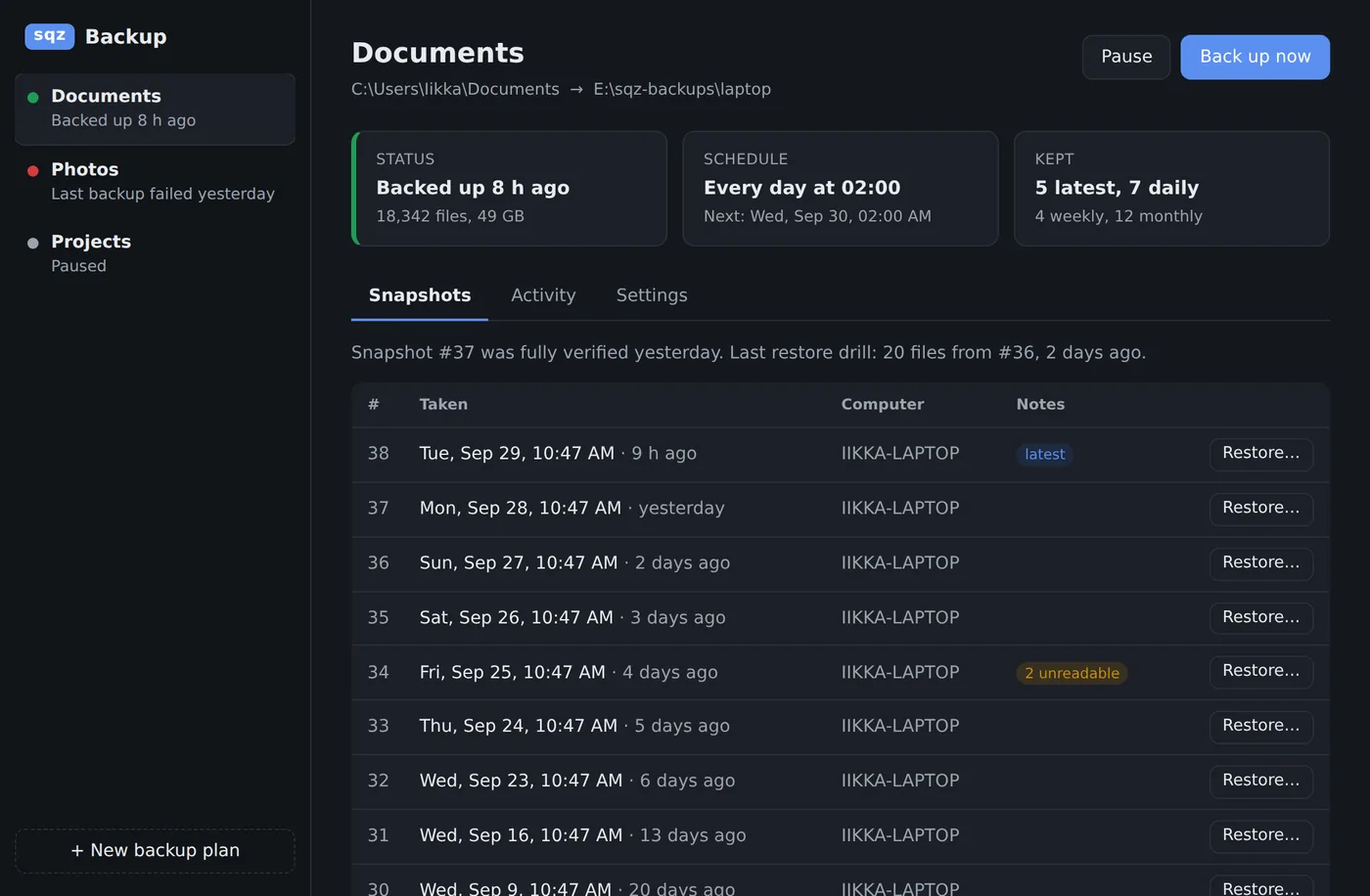
The Snapshots tab lists every snapshot, newest first, with the time, the computer that made it, and notes: latest for the newest, protected for snapshots kept forever, and a warning such as "2 unreadable" when some files could not be read during that backup (the snapshot was still saved). The line above the list says which snapshot was last fully verified and when the last restore drill ran.
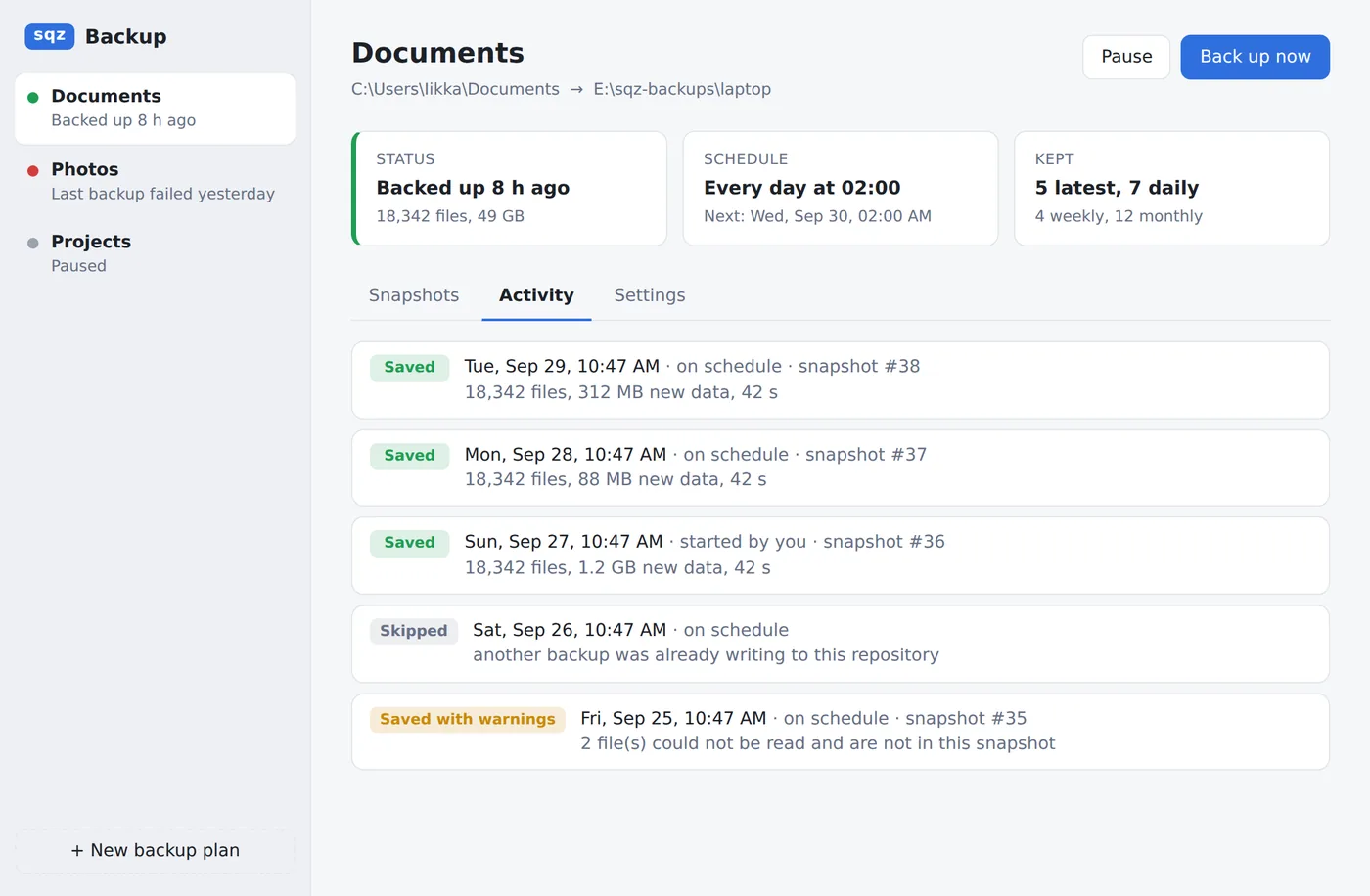
The Activity tab is the plan's history: each run with its result (saved, saved with warnings, skipped, or failed) and what went wrong. A plan whose last backup failed shows a red dot in the list and the reason at the top.
Restore#
Choose Restore… next to a snapshot and pick a folder. The files go into a new folder inside it, named after the plan and snapshot (for example Documents snapshot 37), and nothing that already exists is overwritten. Every file is checked against its BLAKE3 digest as it is restored.
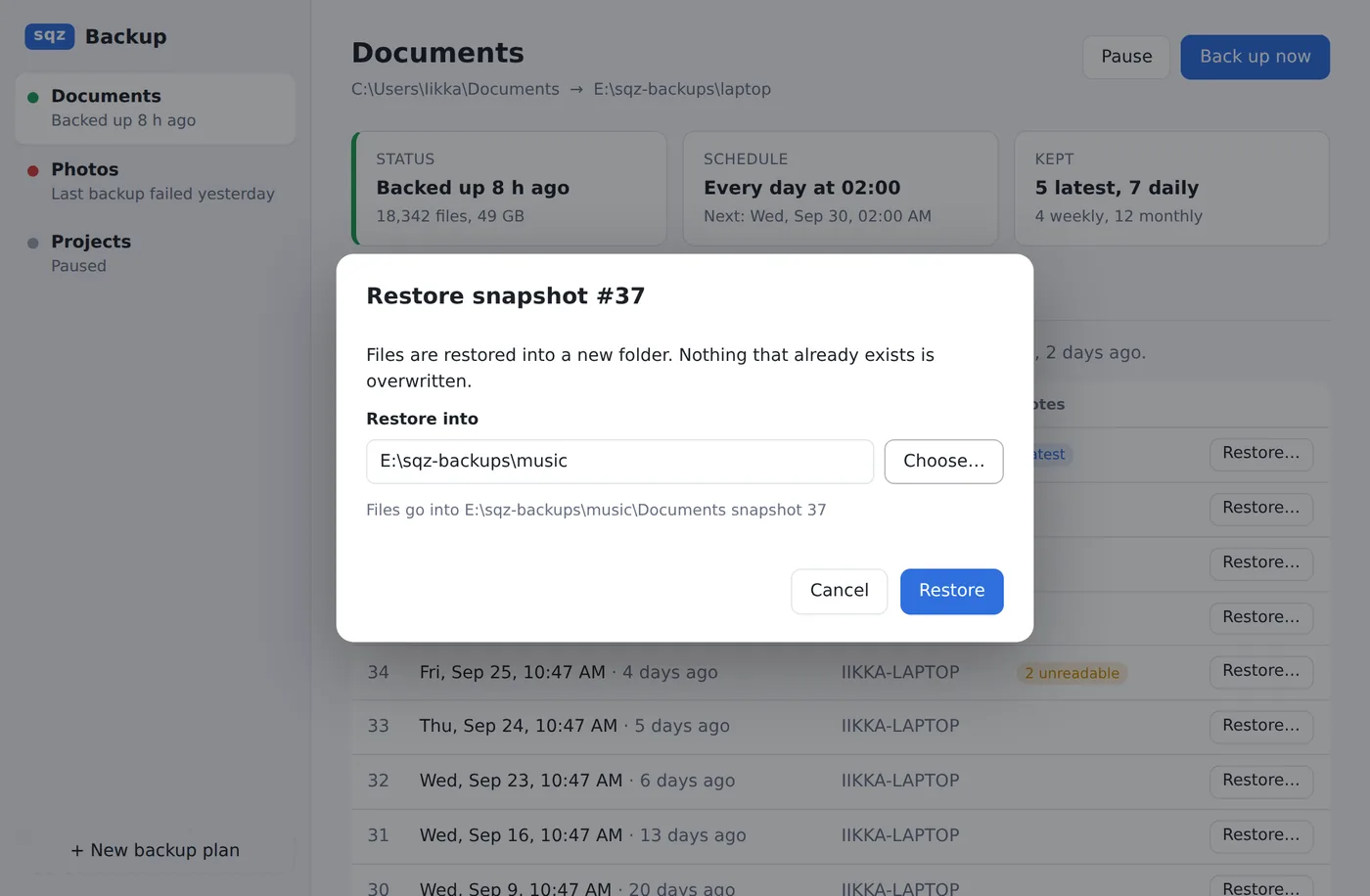
The app restores a whole snapshot. To restore single files, use sqz backup restore … --file PATH from the command line with the same repository and password.
Deleting a plan#
Press Delete at the top of a plan (or Delete plan in its Settings tab) and confirm. The plan's schedule stops, the plan disappears from the app, and its saved password is removed from this computer. A plan can't be deleted while it is backing up.
The backups themselves are not deleted. They stay in the repository folder. To use them again, make a new plan with the same destination, tick This folder already holds SQZ backups, and type its password.
Passwords#
The app keeps each plan's password in the system's own password store: Windows Credential Manager or the macOS Keychain. It passes the password to the engine on standard input (--password-stdin), never in an environment variable or on the command line, where other programs of the same user could read it.
The repository is an ordinary sqz backup repository. You can list, check, drill, copy or restore it from the command line with the same password or the recovery key, with or without the app.
Dark mode#
The app follows the system's light or dark setting.
Where things are kept#
| What | Windows | macOS |
|---|---|---|
| Plans and history (JSON) | %APPDATA%\sqz-backup | ~/Library/Application Support/sqz-backup |
| Passwords | Credential Manager | Keychain |
| Schedules | Task Scheduler | ~/Library/LaunchAgents |
| Backups | The repository folder you chose, readable by sqz backup | |
Not done yet#
- A tray icon and notifications.
- Several folders per plan, and excluding files or folders.
- S3 repositories (the engine supports them; the app does not offer them yet).
- Shadow copies (VSS) for open files on Windows.
- Browsing a snapshot to restore single files.
- Signed installers, and an Intel Mac build.